> ## Documentation Index
> Fetch the complete documentation index at: https://help.leadlabs.app/llms.txt
> Use this file to discover all available pages before exploring further.
# Quickstart
> Start using our AI companion for your day-to-day tasks and become extraordinarily productive.
## Get started in three steps
### Step 1: Install our Chrome Extension
[Click here](https://leadlabs.app/install) to install the extension. It will automatically redirect you to the Chrome Store.
### Step 2: Sign Up (Or Sign In)
There are two ways of signing up for LeadLabs. The simplest method is to sign in with your Google personal email or Google Workspace account.
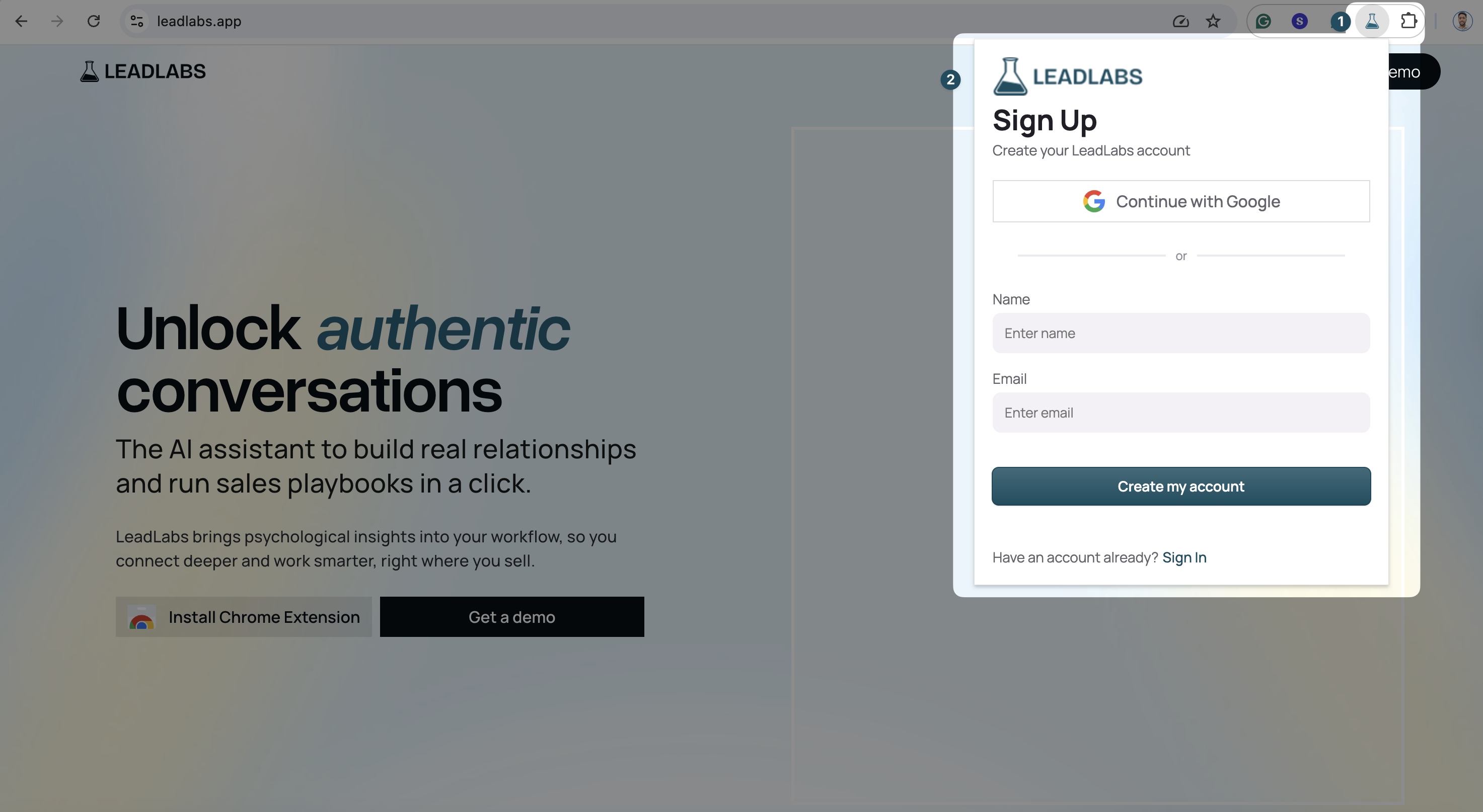 You can manually enter your name and email (if you do not have a Google email) and proceed to sign up by following the steps as shown on the sign up screen.
For verification purposes, LeadLabs will send you a One Time Sign-Up Code to the above email address. Make sure you have access to it during the process.
### Step 3: Calibrate
1. Visit your LinkedIn profile after signing in to LeadLabs, then our AI companion will automatically prompt you to calibrate the AI companion by clicking on "Set Up My AI Assistant".
[Click here to visit your LinkedIn Profile.](https://www.linkedin.com/in/me/)
You can manually enter your name and email (if you do not have a Google email) and proceed to sign up by following the steps as shown on the sign up screen.
For verification purposes, LeadLabs will send you a One Time Sign-Up Code to the above email address. Make sure you have access to it during the process.
### Step 3: Calibrate
1. Visit your LinkedIn profile after signing in to LeadLabs, then our AI companion will automatically prompt you to calibrate the AI companion by clicking on "Set Up My AI Assistant".
[Click here to visit your LinkedIn Profile.](https://www.linkedin.com/in/me/)
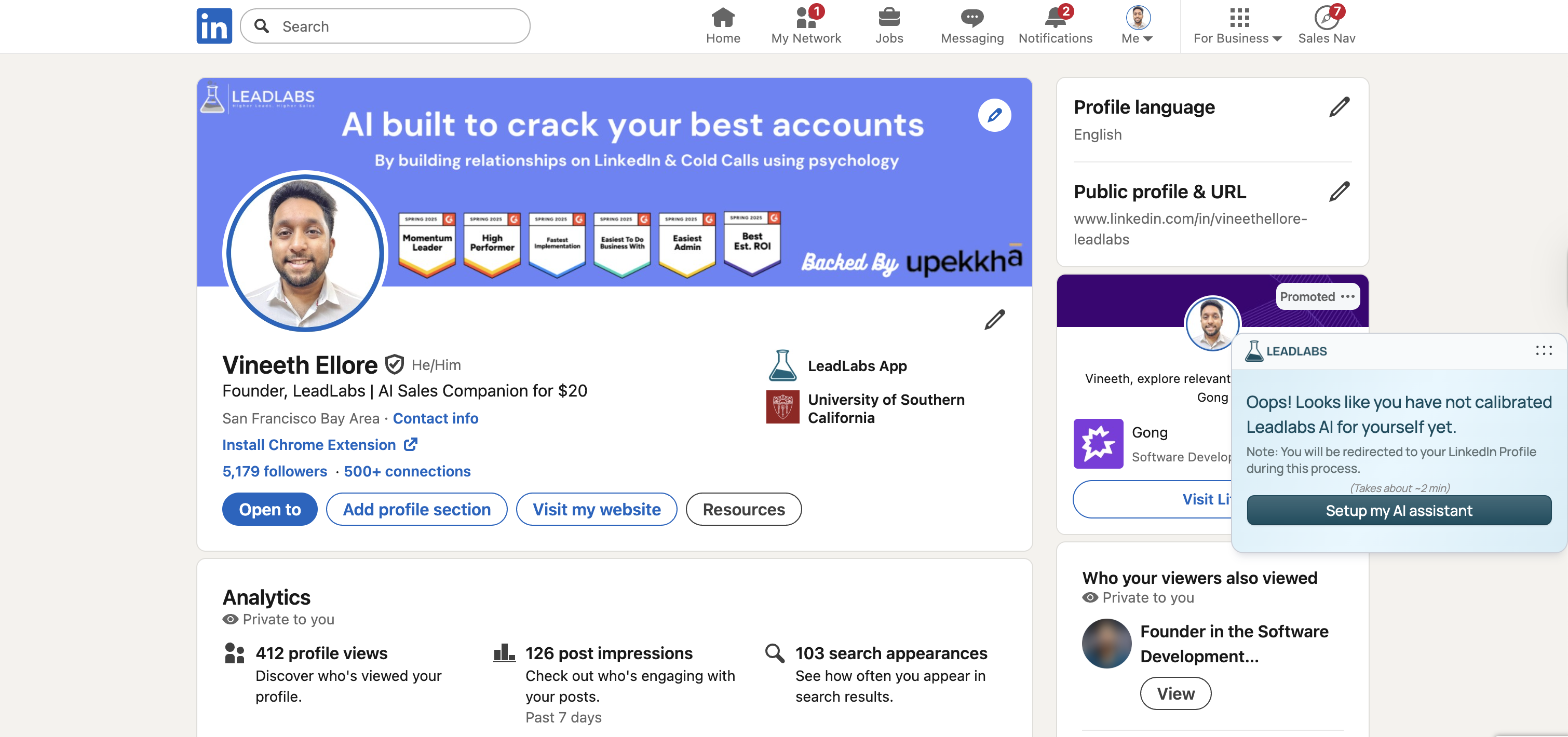 2. Follow the on screen instructions and you're all set to go!
## Next steps
Now that you have your own AI comapnion running on the browser, explore what it can do:
Get a brief overview of how LeadLabs can simplify your everyday sales tasks while building authentic relationships.
Learn the various features of LeadLabs and master social selling while improving productivity.
Tune your AI companion by tweaking and adjusting the various available settings.
***
## Need some help?
We pride ourselves on our impeccable support. Drop us an email at [hello@leadlabs.app](mailto:hello@leadlabs.app) and we will get back ASAP.
2. Follow the on screen instructions and you're all set to go!
## Next steps
Now that you have your own AI comapnion running on the browser, explore what it can do:
Get a brief overview of how LeadLabs can simplify your everyday sales tasks while building authentic relationships.
Learn the various features of LeadLabs and master social selling while improving productivity.
Tune your AI companion by tweaking and adjusting the various available settings.
***
## Need some help?
We pride ourselves on our impeccable support. Drop us an email at [hello@leadlabs.app](mailto:hello@leadlabs.app) and we will get back ASAP.